Manage Users (Dashboard)
The dashboard enables you to effortlessly access user information and perform actions.
Access user-specific interface.
Section titled “Access user-specific interface.”Before viewing or taking any action on a user, you must first access their specific interface.
- Navigate to your project.
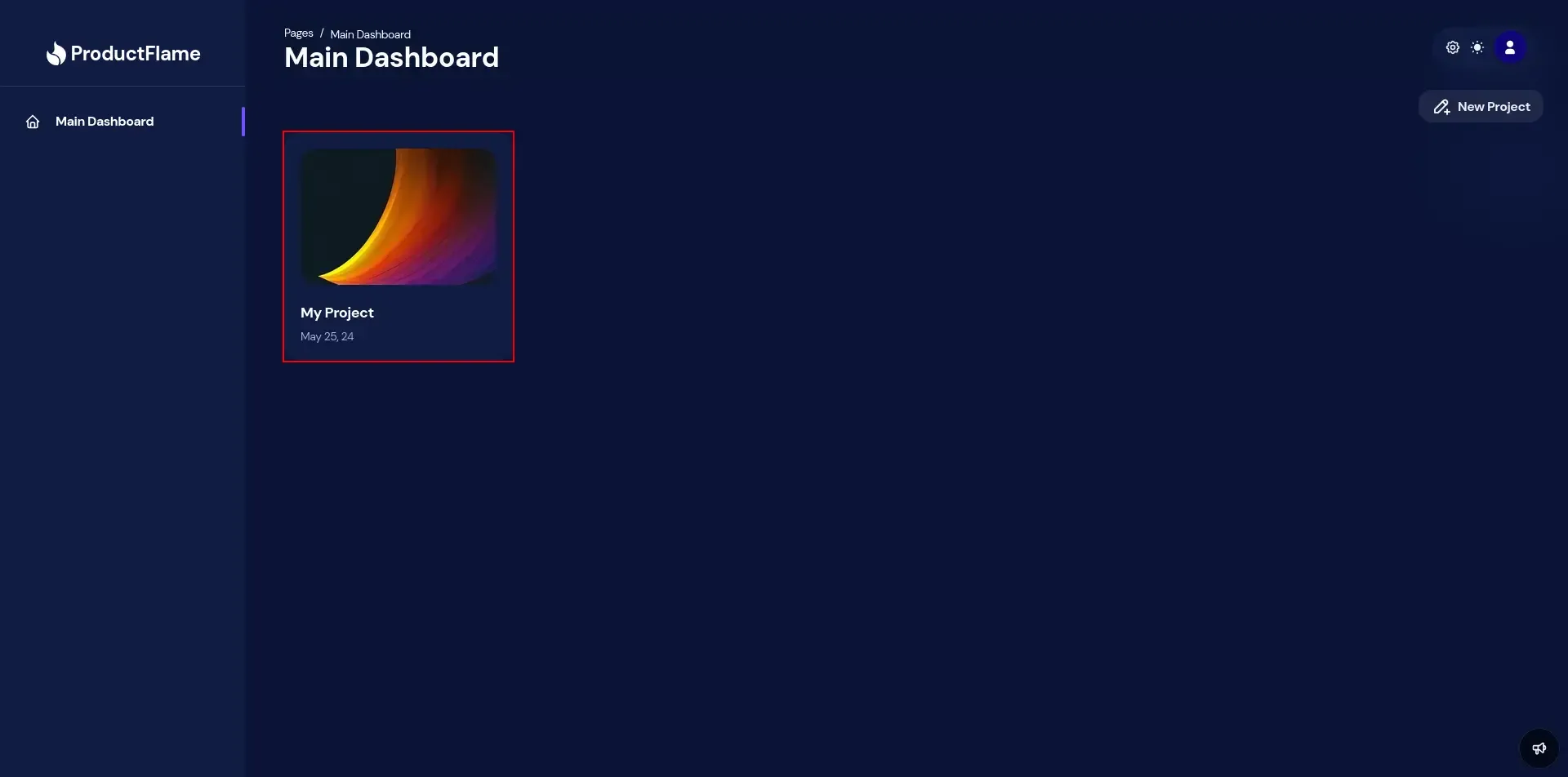
- Select the desired user by from Users.
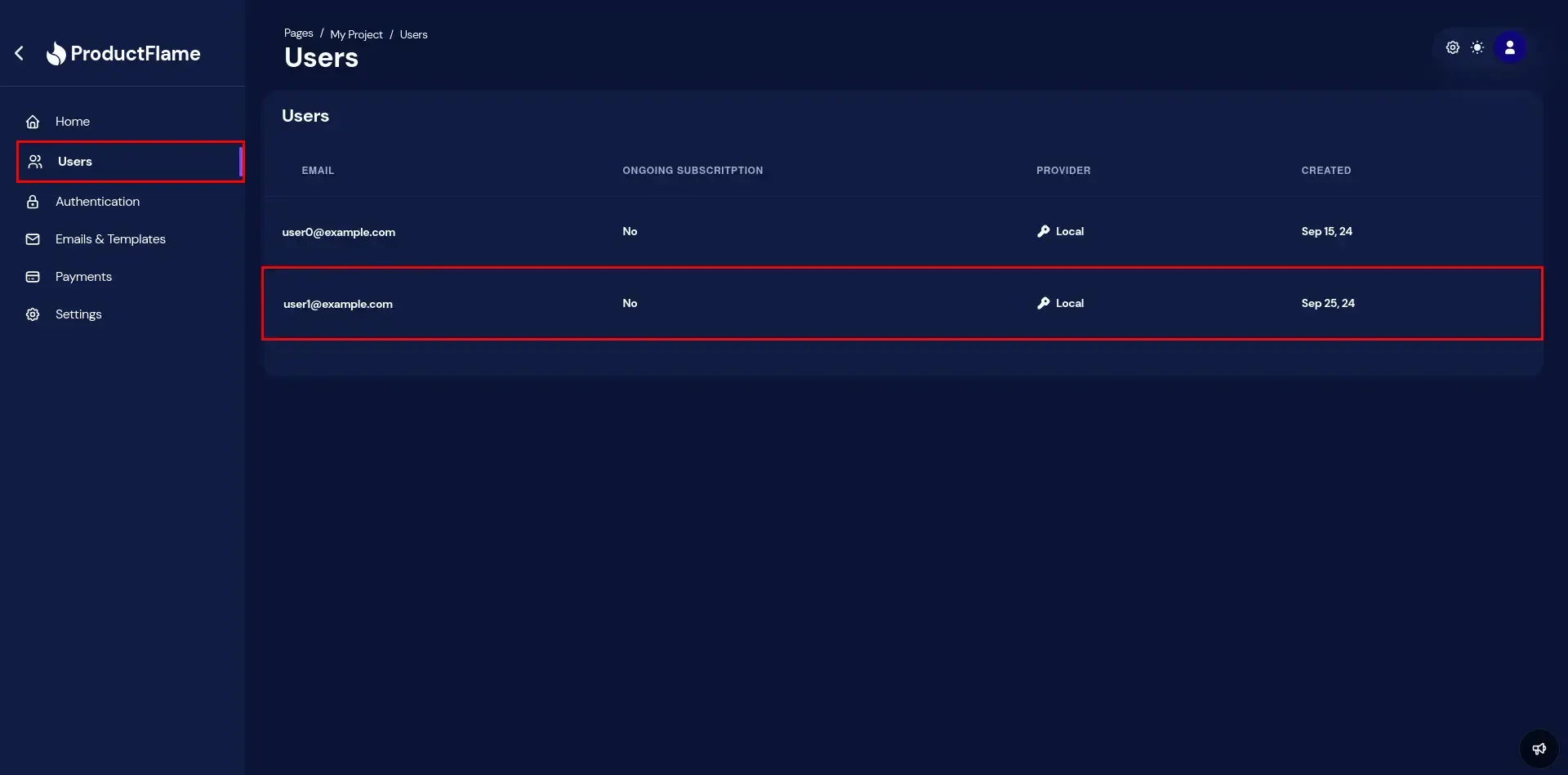
- Here’s the user interface, where you can access personal details and manage both the user and their subscriptions.
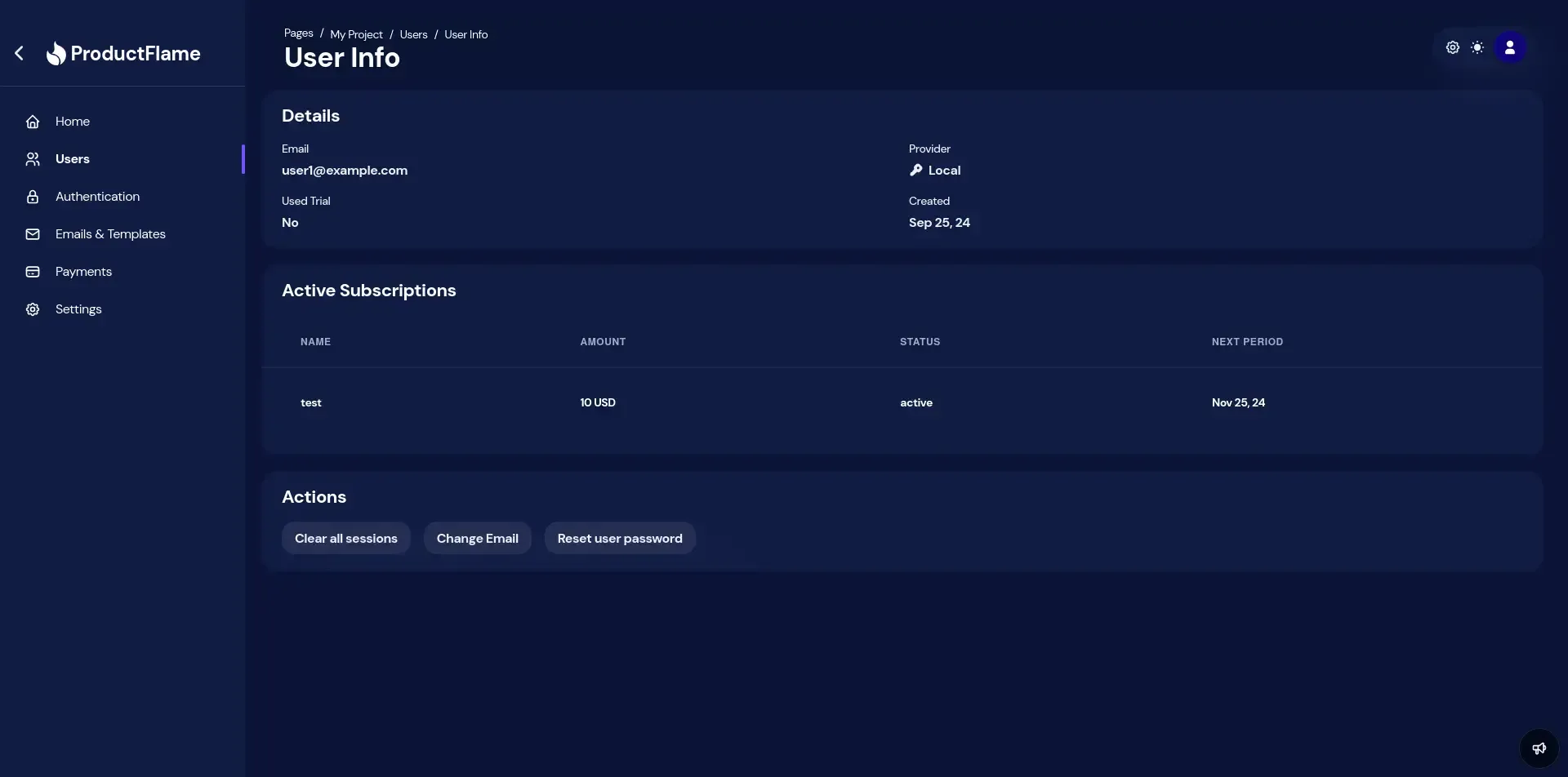
User actions
Section titled “User actions”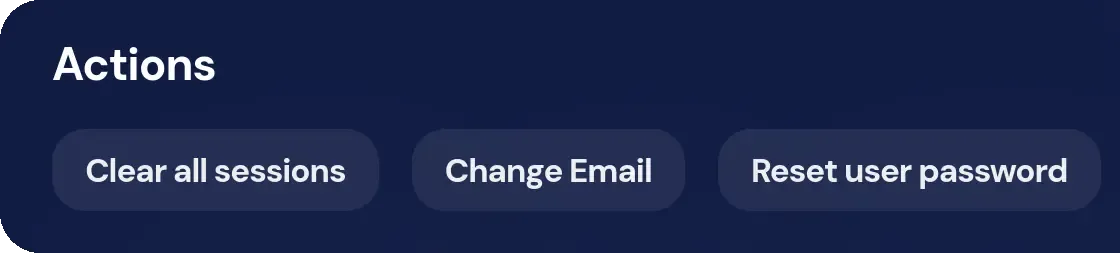
- Clear all sessions: This will log the user out of all active sessions/devices.
- Change email: It will replace the user’s email address with the chosen address only if it is not already in use by another user.
- Reset user password: The user will receive an email asking them to set a new password. It requires the email to be configured and a password reset template set up.
Manage subscriptions
Section titled “Manage subscriptions”To manage a subscription, you have to select it.
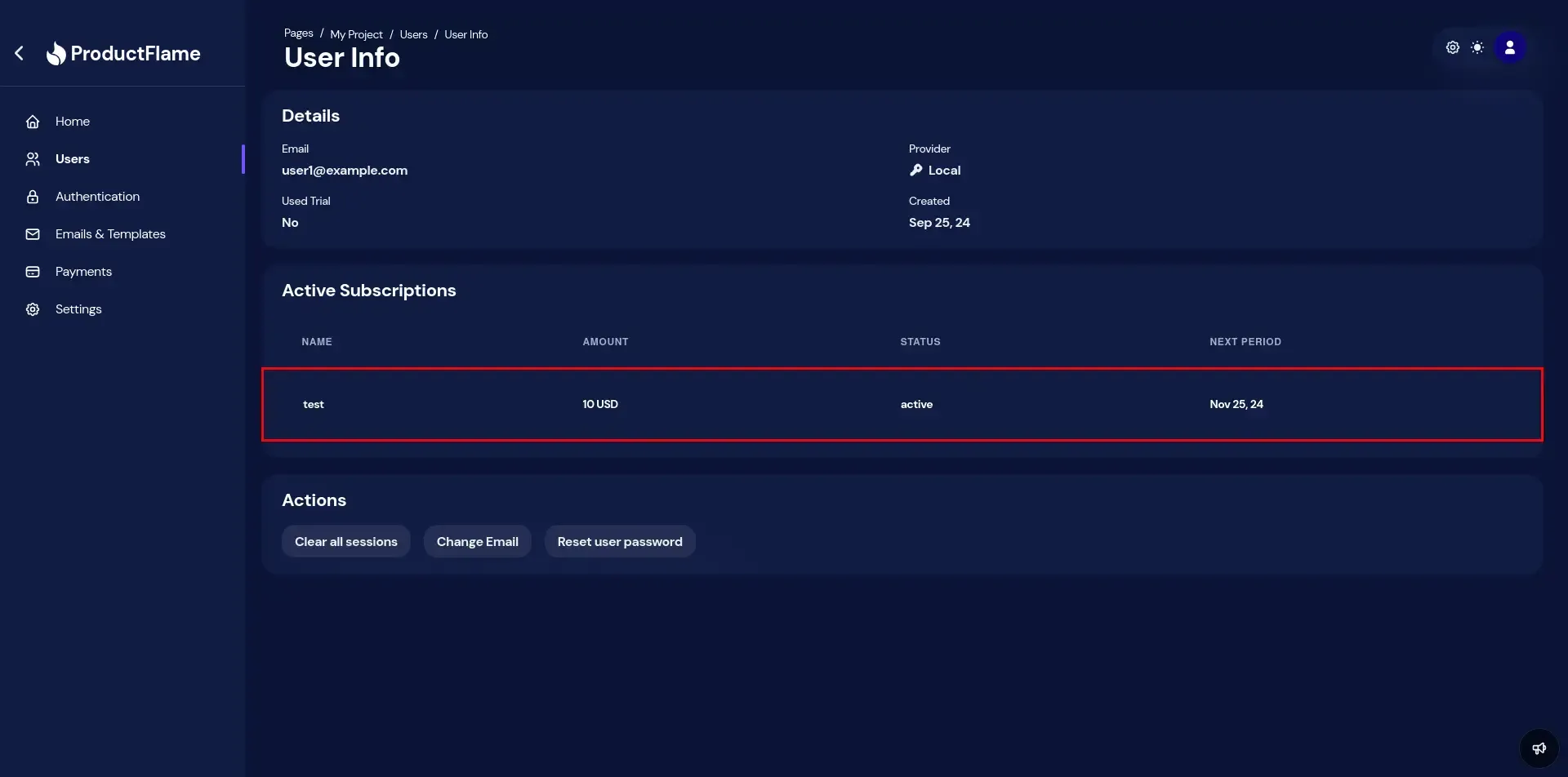
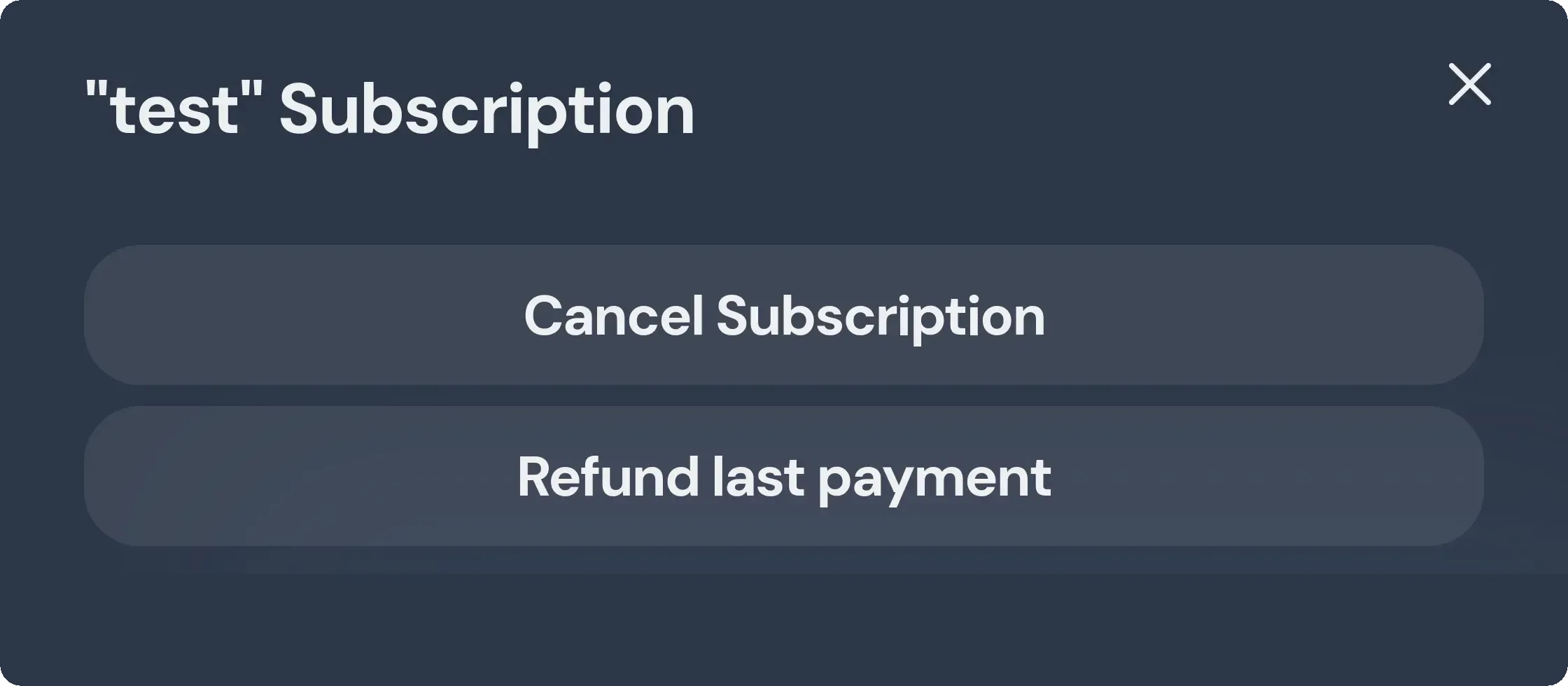
You will be prompted by the following popup.
Cancel subscription
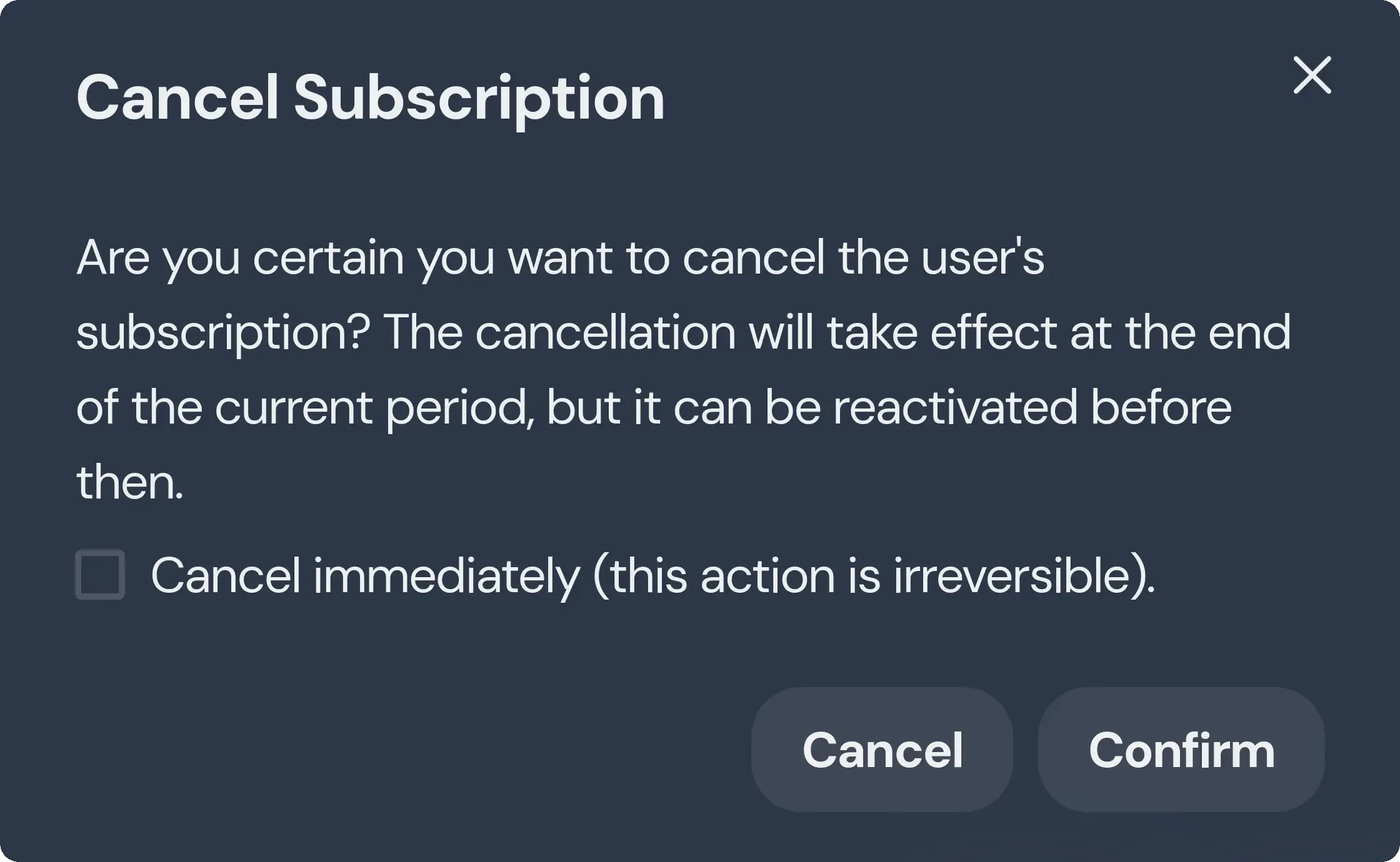
Section titled “Cancel subscription”You can cancel the user’s subscription here, either immediately or at the end of the billing period. Cancelling immediately will prevent reactivation, requiring the user to redo the payment process.
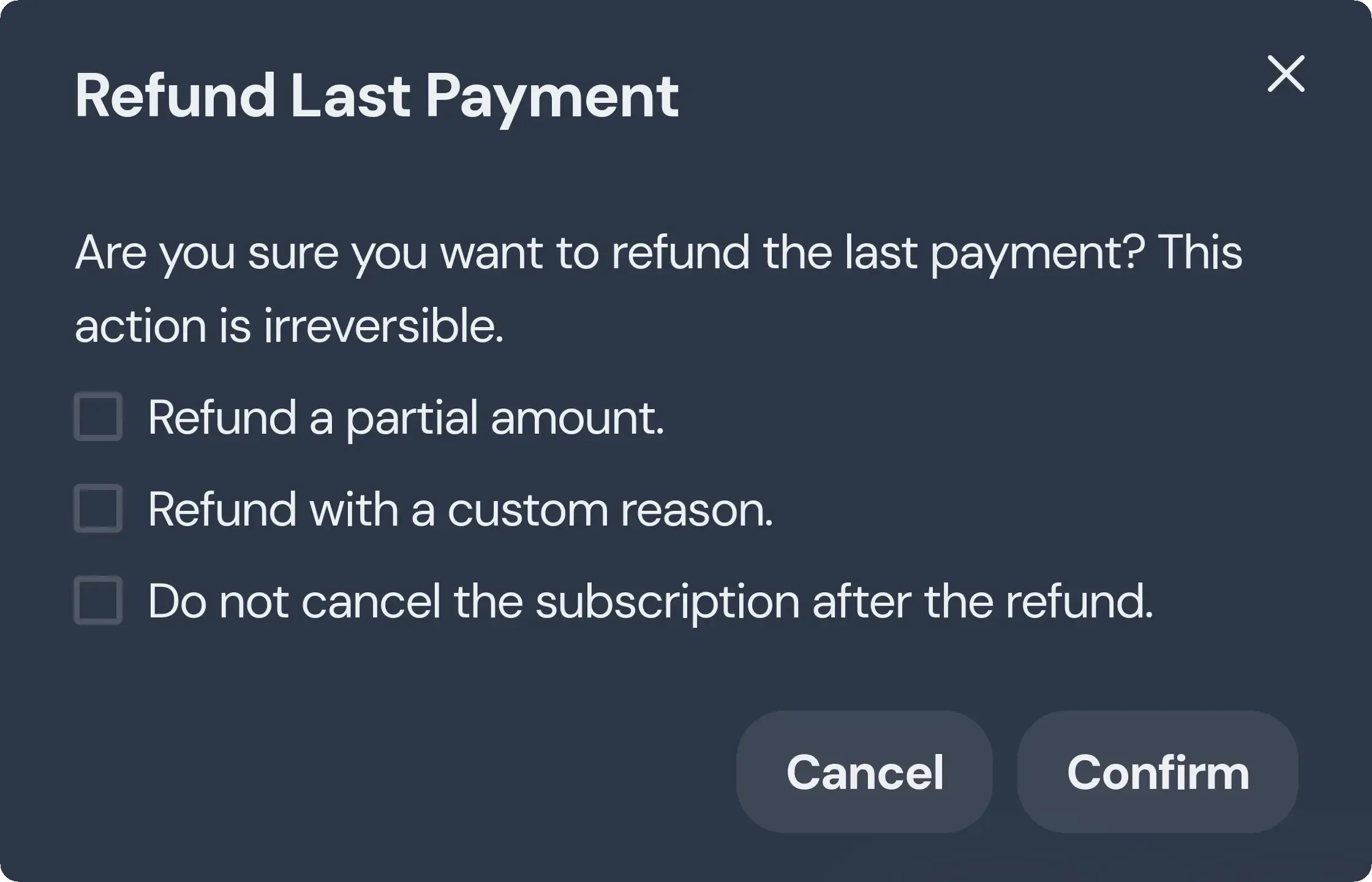
Refund last payment
Section titled “Refund last payment”You can refund the most recent subscription payment using the options available here:
- Refund a partial amount: Allows you to refund a specific amount from the total payment. You can refund the remaining balance later.
- Refund with a custom reason: Set a custom reason for the refund. It can be one of the following:
duplicate,fraudulent,requested_by_customer. - Do not cancel the subscription after refund: By default, a refund cancels the subscription. However, this behavior can be modified using the checkbox.